


Environments
Repositories
Promote/Publish
Install/Update
Integrations
Teams
Launch Buttons
Promotions
Tagging


1
min
Publish Snapshot
Overview:
This article explains how to publish a snapshot in Solsta so its assets become available for download within an environment.
Once published, the snapshot can be downloaded by any user with access to that environment.
Admin access required.
Default publish limit: 20GB per job
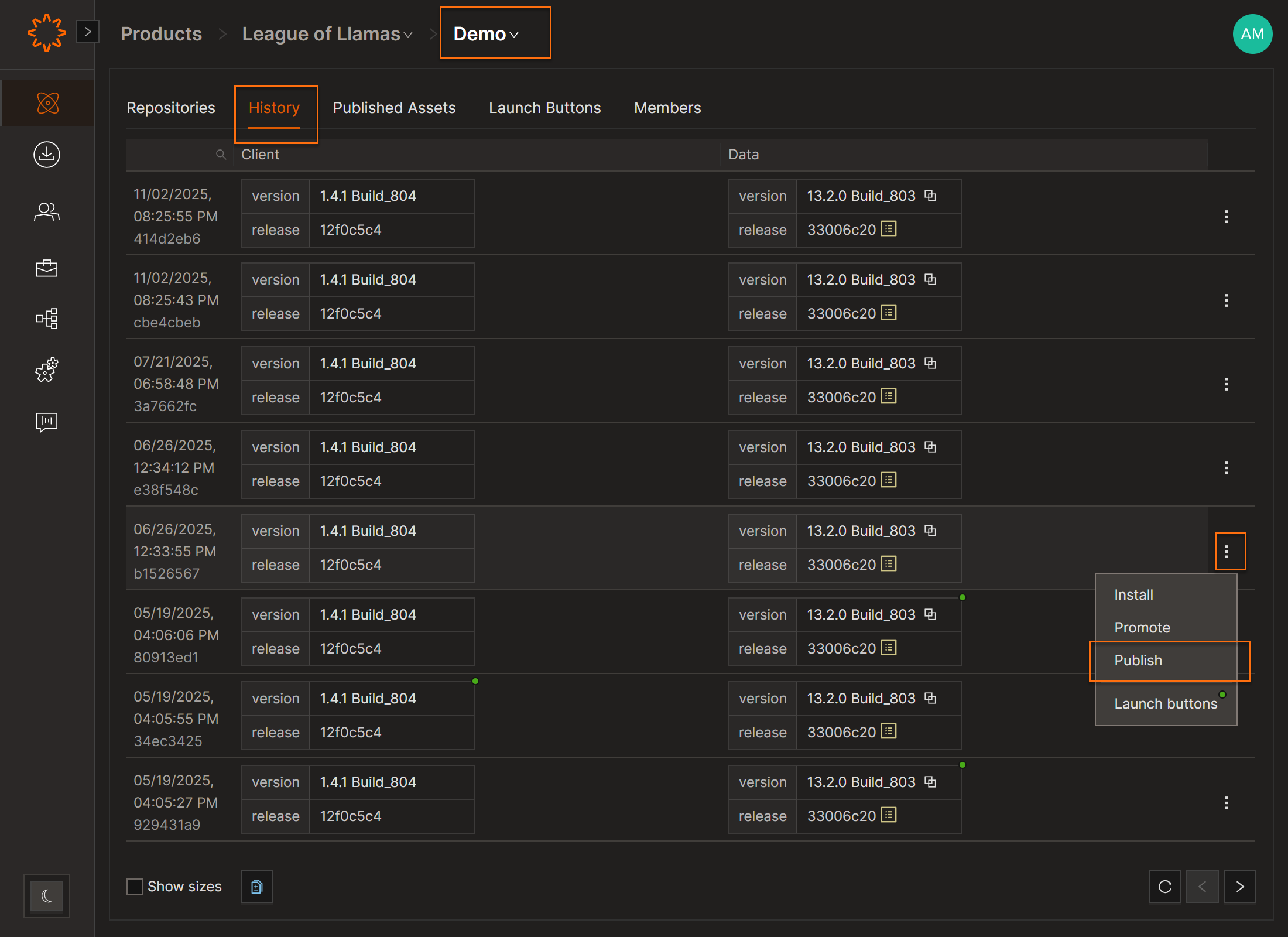
Publish
- Open Product → Environment → History
- Click the menu next to the snapshot → Publish Snapshot
- Enter:
- Name
- Description
- Filename (
.zipto package all files; use original extension for single-file deployments) - Custom Releases (optional version overrides)
- Click OK
Track progress in the Jobs tab. Once complete, the asset appears under Published Assets.
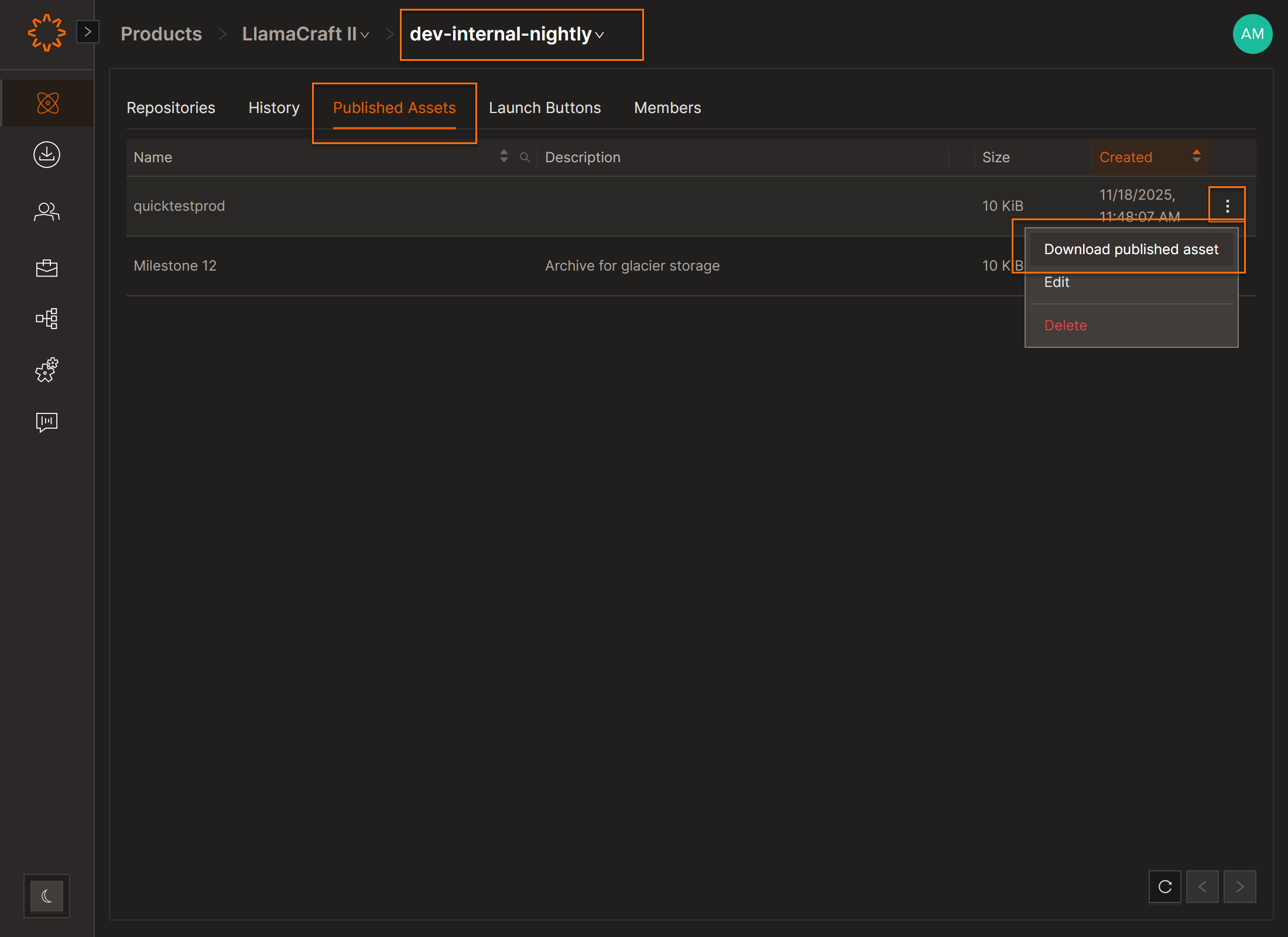
Download Published Assets
- Click on your Product → Environment → Published Assets tab
- Click on the menu and download button
- The file will be downloaded in your default web browser
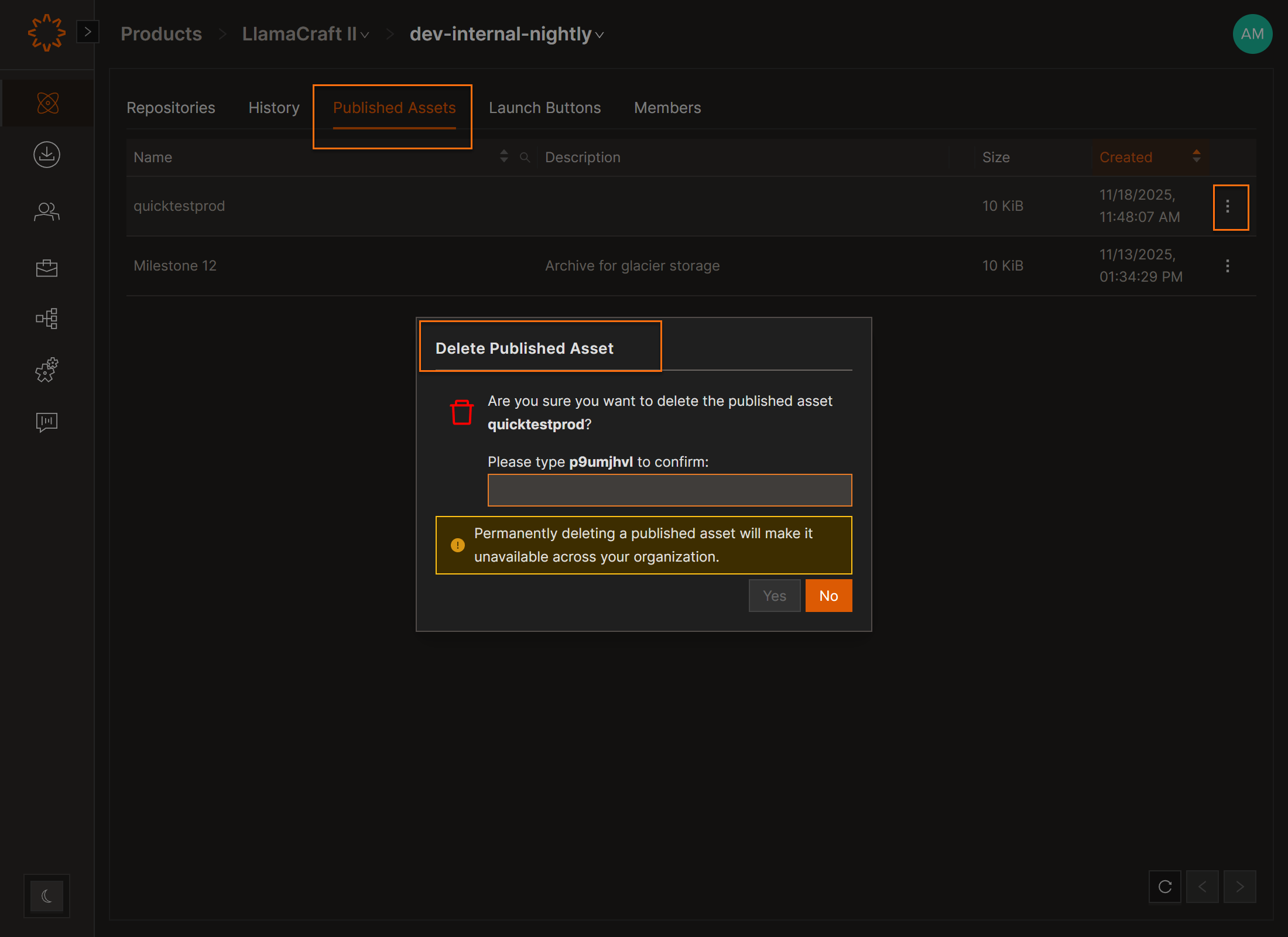
Delete Published Assets
- Click on your Product → Environment → Published Assets tab
- Click on three dot menu
- Type the confirmation prompt
- Click Ok
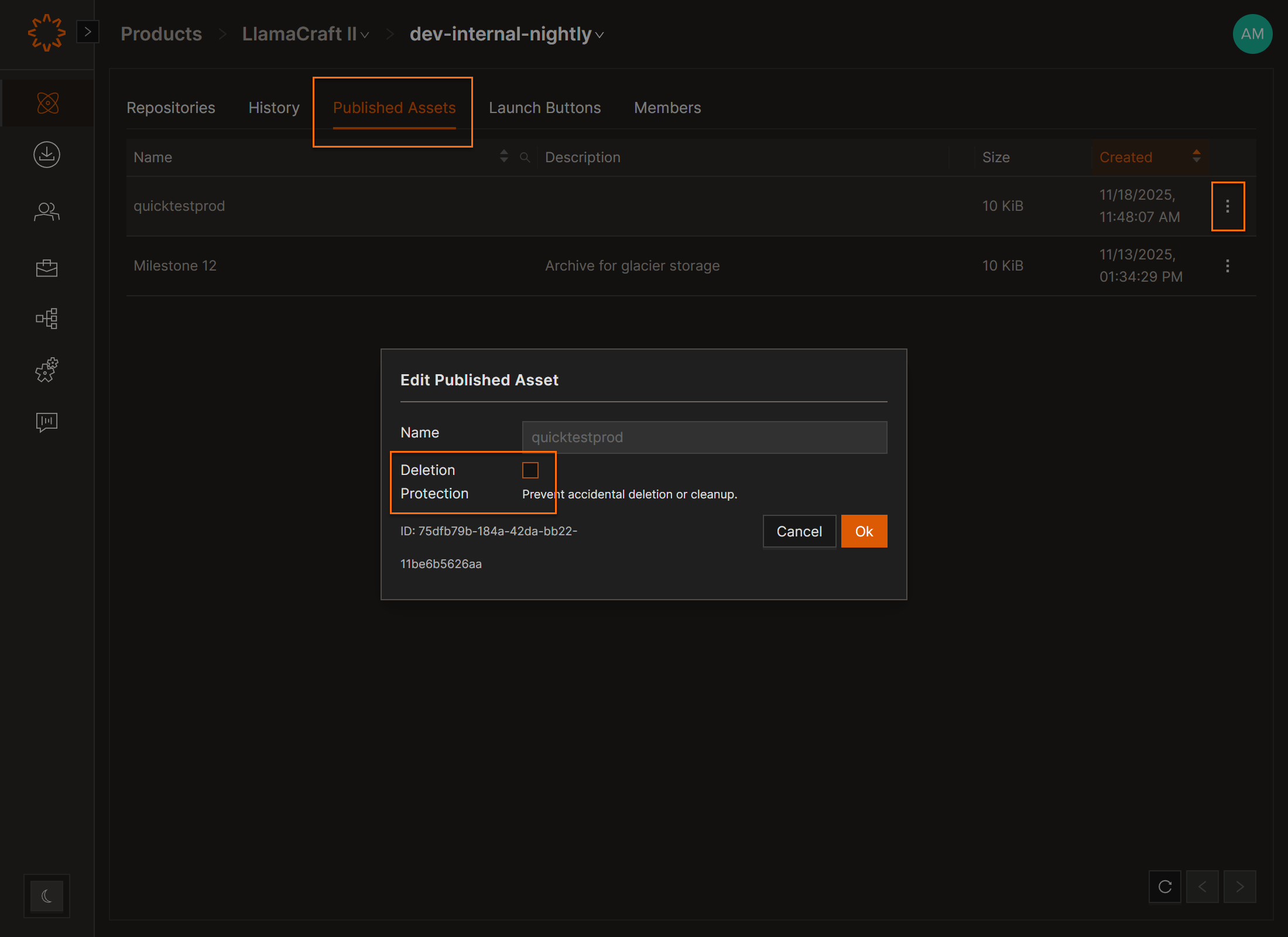
Protect Published Assets from Deletion
- Click on your Product → Environment → Published Assets tab
- Click on the edit button
- Type the confirmation prompt
- Click Ok
DOs
DONTs
Pro Tips


