


Environments
Repositories
Promote/Publish
Install/Update
Integrations
Teams
Launch Buttons
Promotions
Tagging


min
Install Environment
Overview:
You can install the latest Environments from two locations:
1. Product View
- Open Products.
- Click Install next to the desired Environment.
2. Environment View
- Open Product → Environment.
- Click Install Environment.
The latest assigned releases will install on your machine.
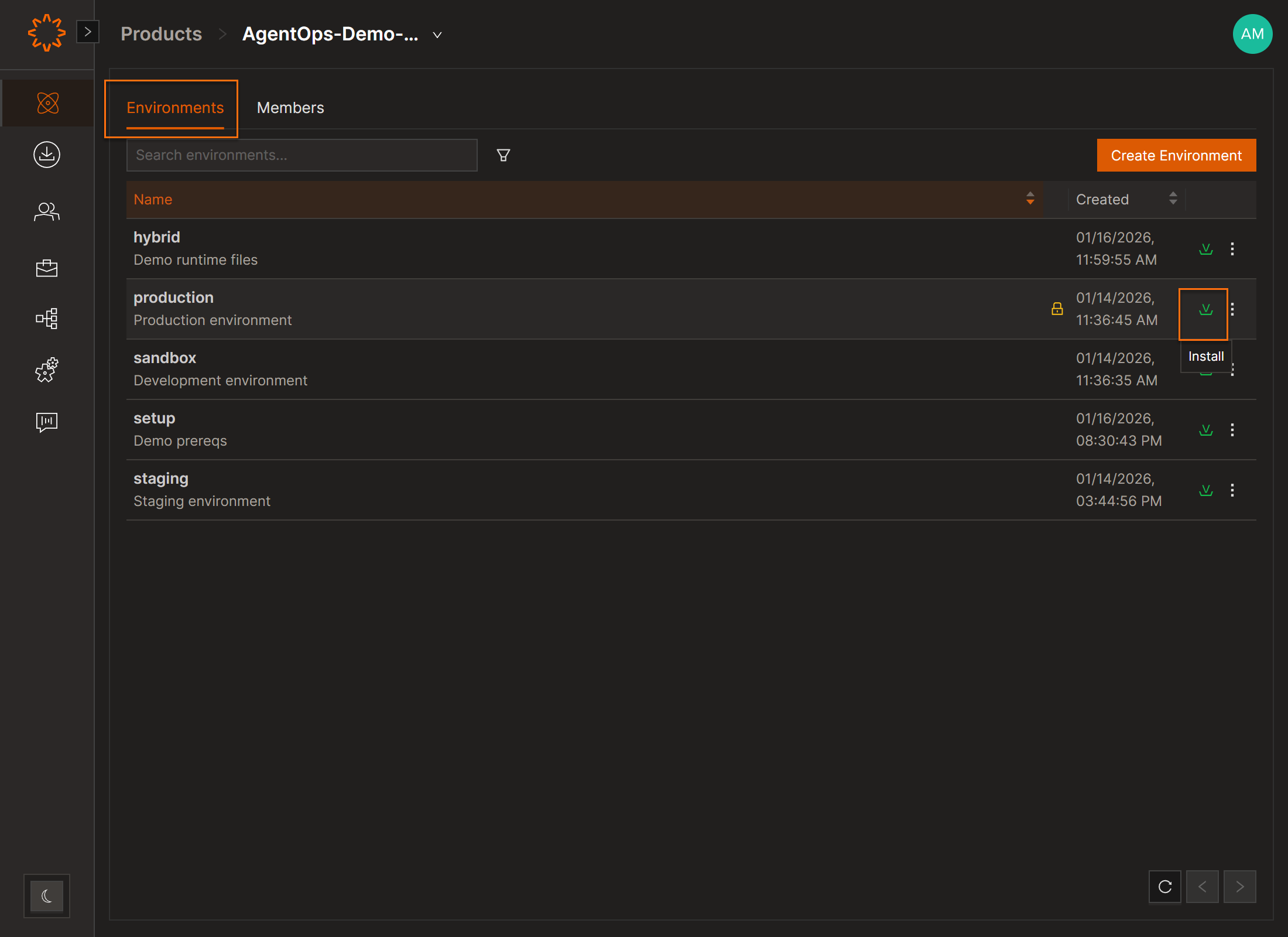
Demo
Installing Environment Versions (Older Versions):
Users can install a specific environment version—including older versions—directly from the Environments screen.
Steps
- Select a Product.
- Select an Environment.
- Open the History tab.
- Find the snapshot that contains the version set you want.
- Click the Install icon in the Actions column.
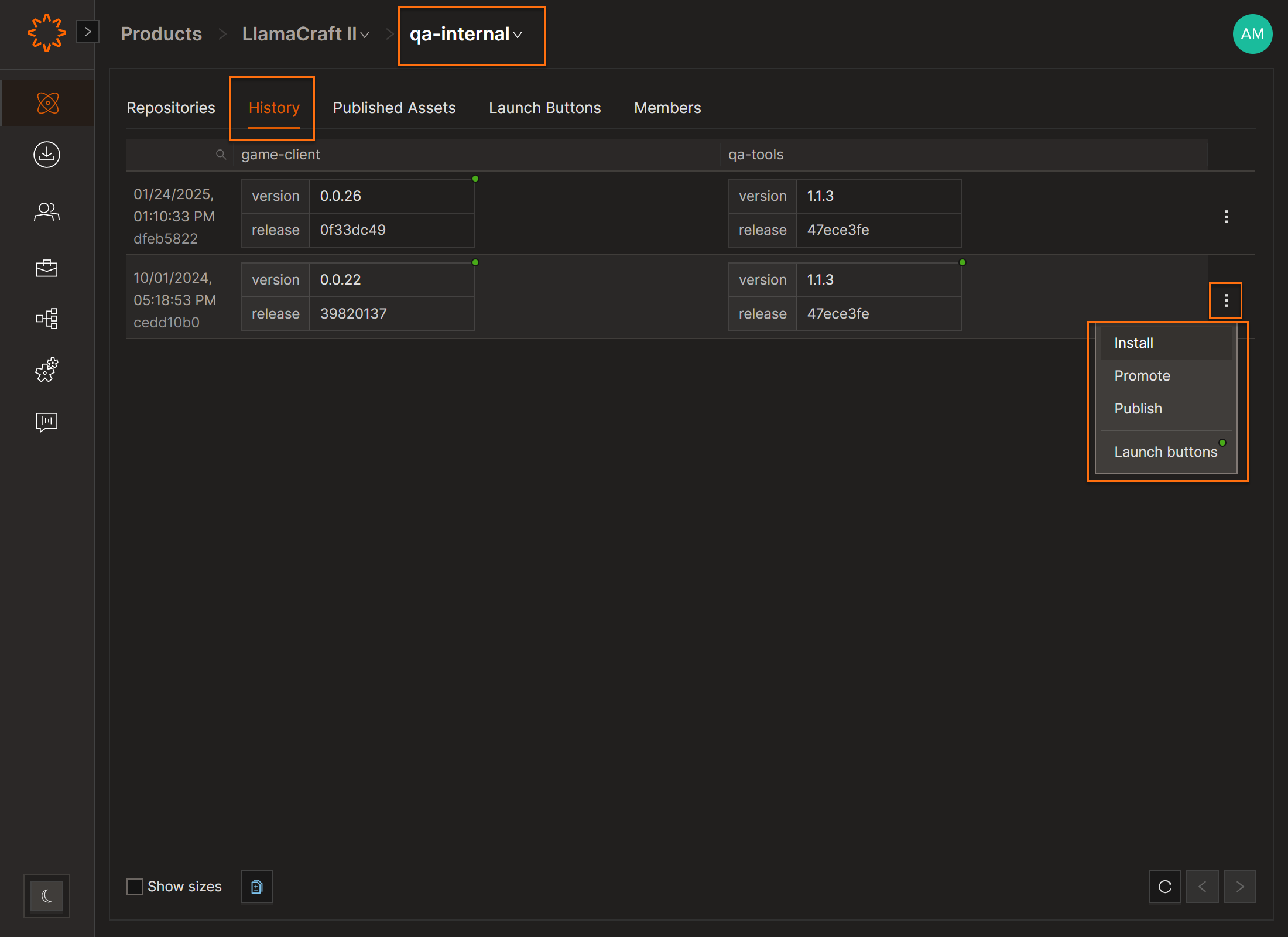
After Installation
Because you installed a snapshot rather than the currently promoted versions, the environment may show “Update Available.”
You can leave it as-is, update manually when you're ready, or opt out of automatic updates.
DOs
DONTs
Pro Tips


