


Environments
Repositories
Promote/Publish
Install/Update
Integrations
Teams
Launch Buttons
Promotions
Tagging


min
Organization Access Controls
Overview:
Organization Admins manage all aspects of the Solsta organization, from deployment objects and users, to throttling rules and caching server redirects.
Admins can:
- Create, update, and delete Products, Environments, Repositories and Releases
- Invite and manage users
- Create and manage teams
- Create and manage machine credentials
- Assign roles to users, teams or machines
- Configure throttling rules
- Configure cache server redirects
Inviter: The Inviter role grants the user the ability to invite other users.
Viewer: is the default member role. See below to use object permissions for fine-grained authentication to specific Products or Environments.
Assign an Organization Role
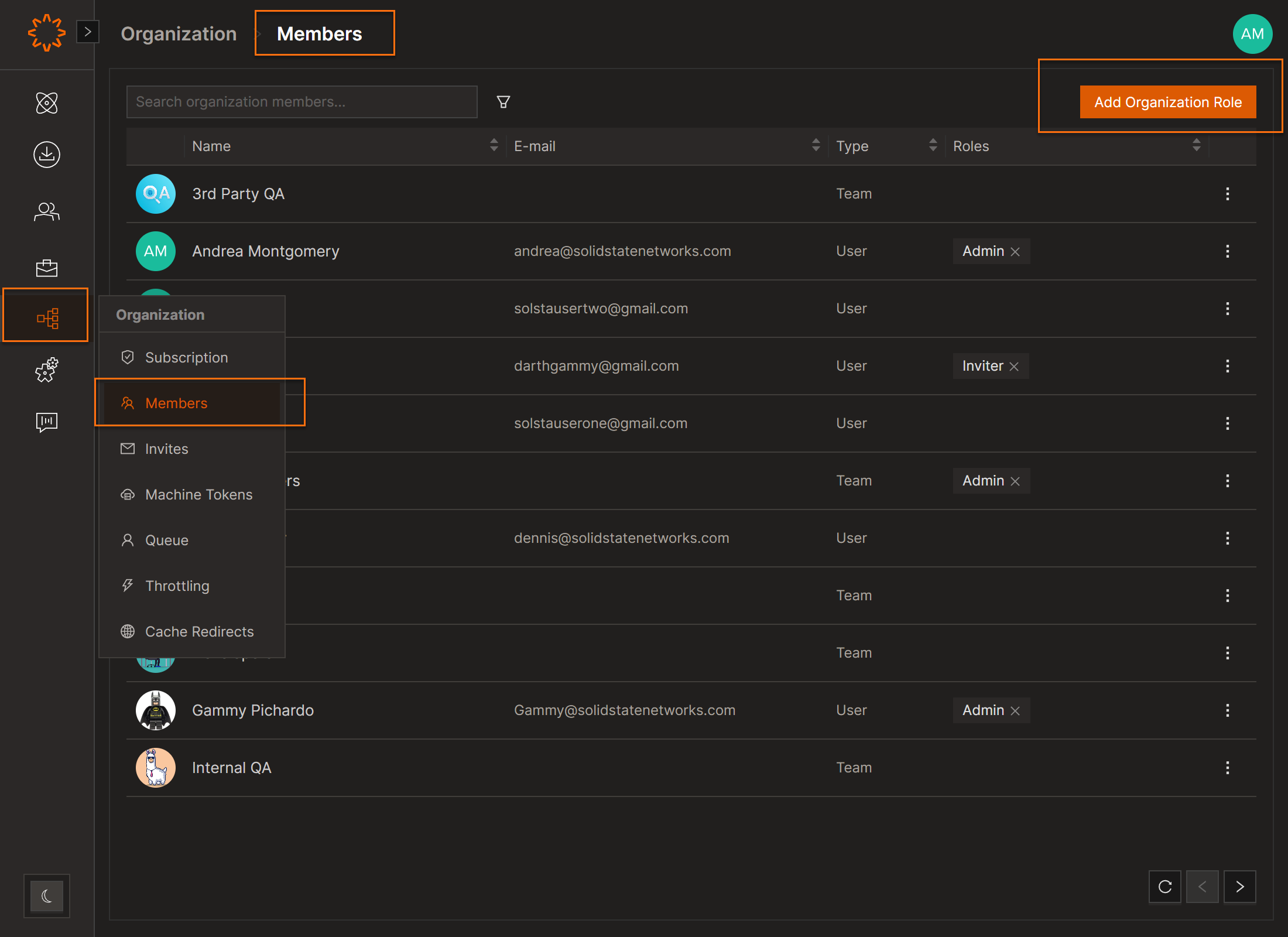
- Click the Organization icon in the sidebar
- Select Members
- Click Add Organization Role
- Choose the entity type: User, Team, or Machine
- Assign a role:
- Admin
- Inviter
- Viewer
- Save
Grant Object-level Permissions
You can control the access for users, teams, machines or the entire organization to every Product and Environment you have deployed.
Available Roles
- Viewer – Can view the object and install or update it.
- Admin – Includes all Viewer permissions, plus the ability to:
- Edit the object
- Create and manage child objects
- Manage member access
- Configure launch buttons
- Promote releases and snapshots
- Publish snapshots
Use the steps below to manage access for a Product or Environment:
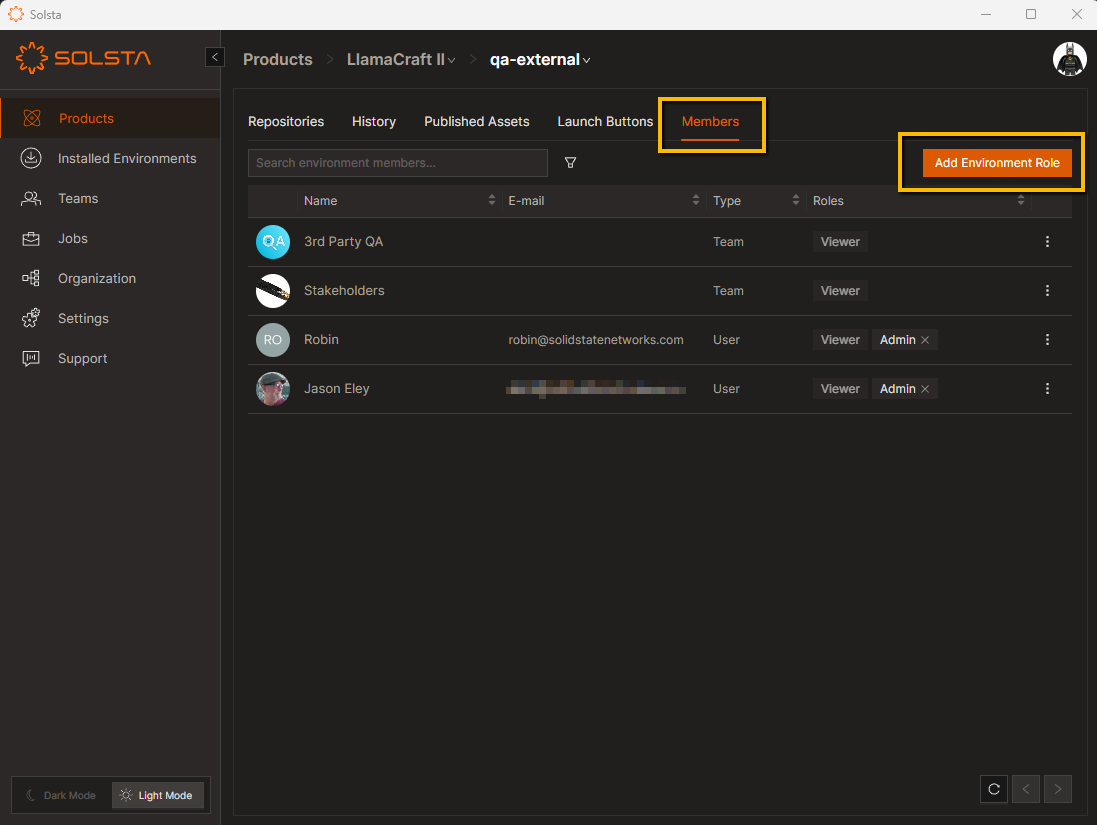
- Go to the Product or Environment
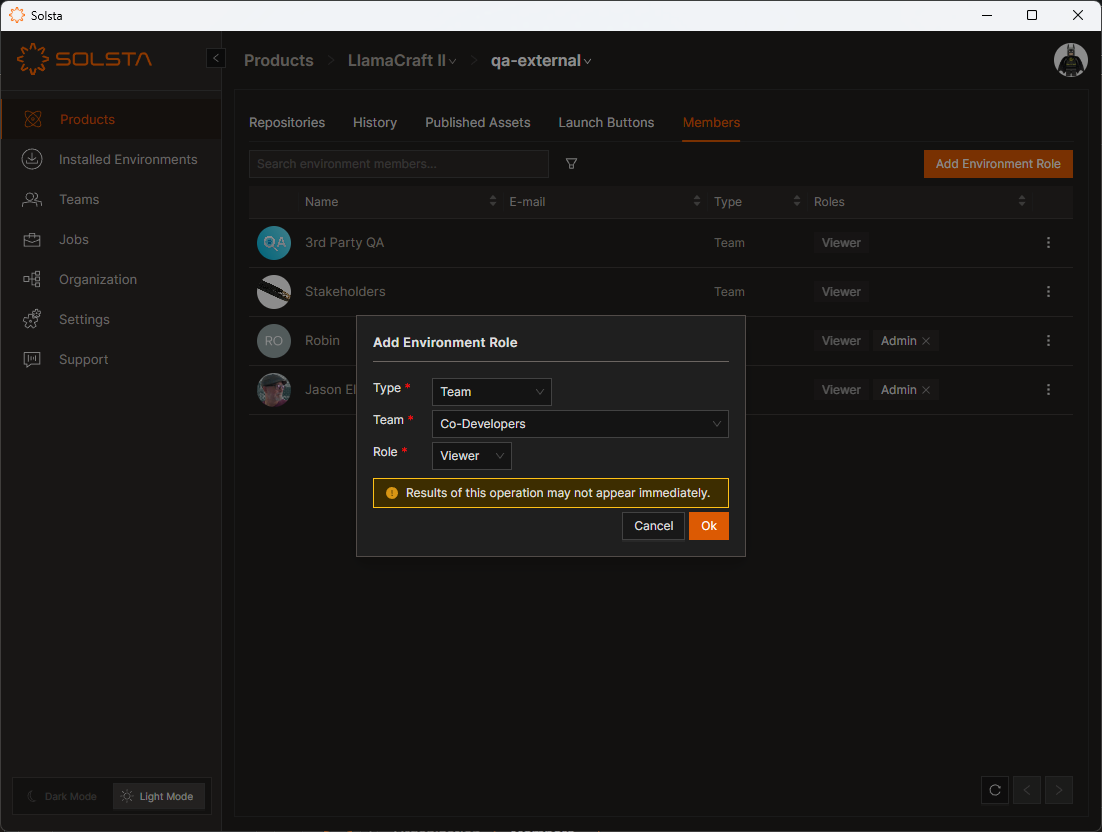
- Click the Members tab → Add Role button
- Select User, Team, Machine or Organization.
- User/Team/Machine = Name of the user, team or machine
- Role: Viewer or Admin
- Click Ok
DOs
DONTs
Pro Tips


