


Environments
Repositories
Promote/Publish
Install/Update
Integrations
Teams
Launch Buttons
Promotions
Tagging


min
Create Launch Buttons
Overview:
Launch buttons let you create custom workflows or allow members to quickly run or open files after installing an environment.
Two Types of Launch Buttons
- Global – Created at the Environment level and visible to everyone on your team who installs the environment. Only Admins can create global launch buttons.
- User (Local) – Personal launch buttons visible only to the creator, designed for faster shortcuts and workflows.
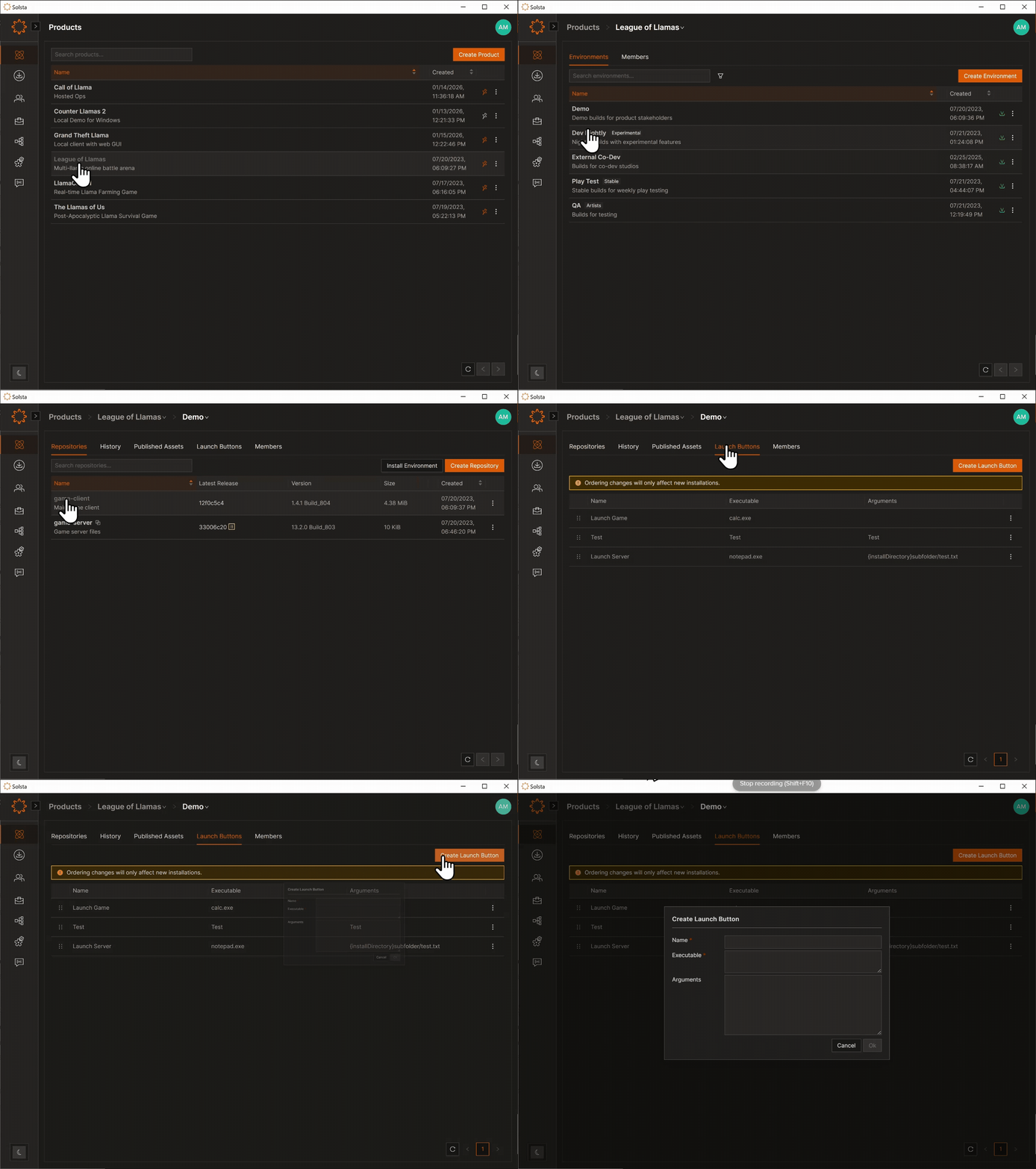
Create a Global Launch Button (Admin)
- Open Product → Environment.
- Select the Launch Buttons tab.
- Click Create Launch Button.
- Enter:
- Executable (required)
- Arguments (optional)
- Click Create.
Local Launch Buttons Tutorial
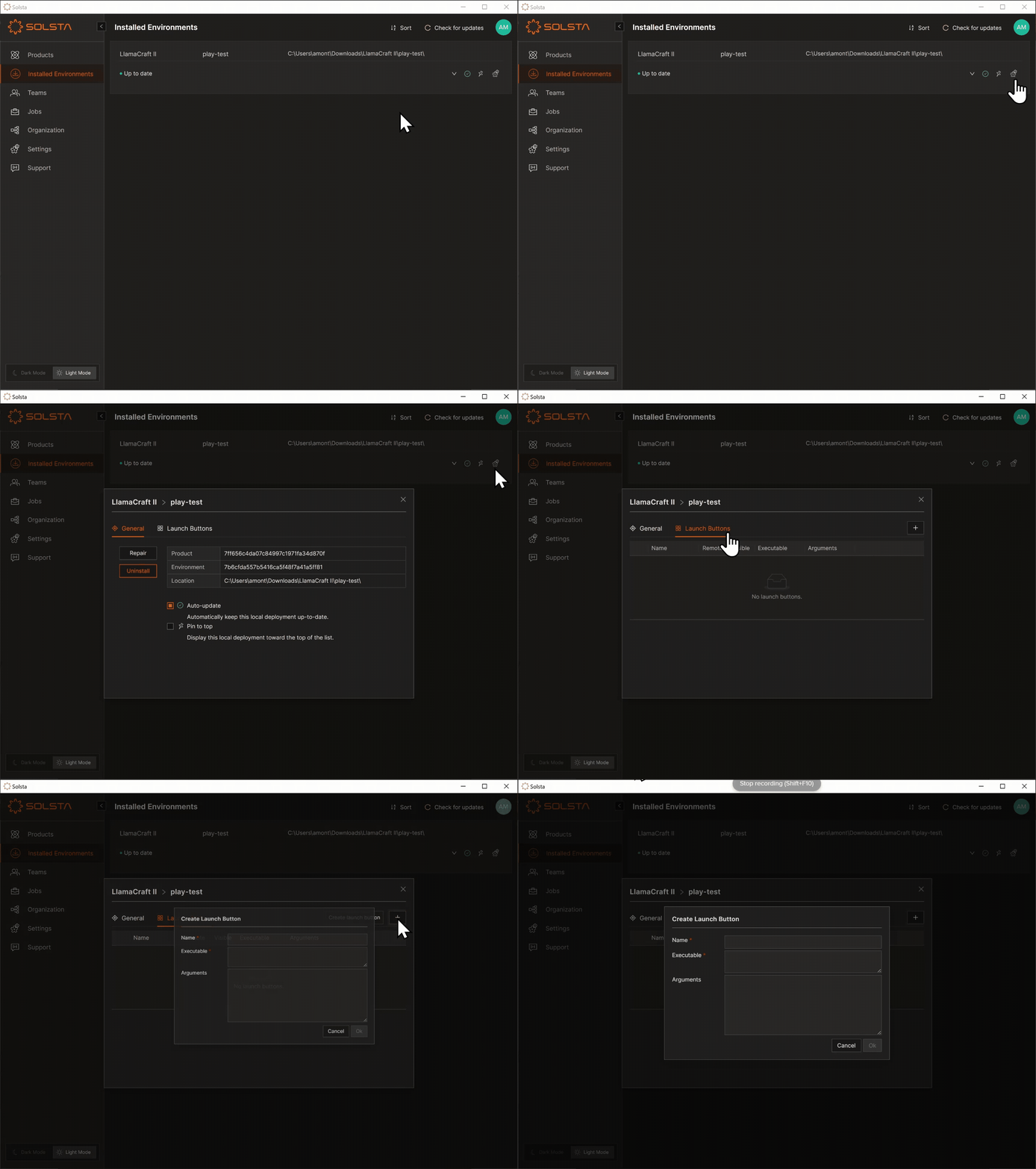
Manage Local Launch Buttons
- Navigate to Installed Envrionments tab
- Select Settings Icon
- Choose Launch Buttons Tab
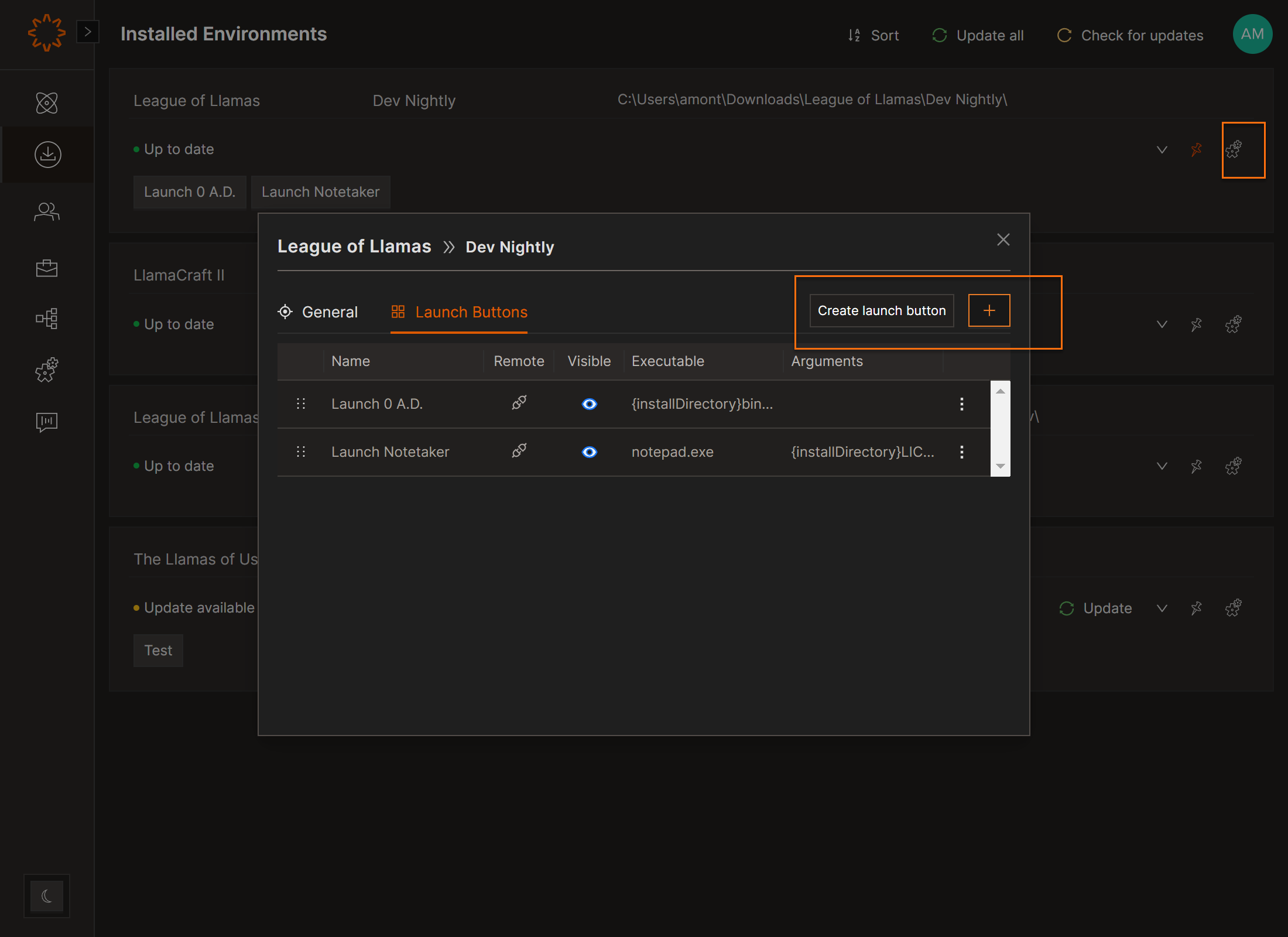
- Copy/View/Edit/Reorder/Delete: Options in the Launch Buttons panel.
- Disabled Buttons: Appear grayed out if the mapped file isn’t installed locally.
macOS Tip: To open non-application files, use /usr/bin/open as File Path and {installDirectory}file.pkg as Arguments.
DOs
DONTs
Pro Tips
Install Envrionment first if you are trying to create you own user launch button so it won't impact anyone else


